

Exchanges page
This page manages the exchange accounts AlphaHouse trades in.
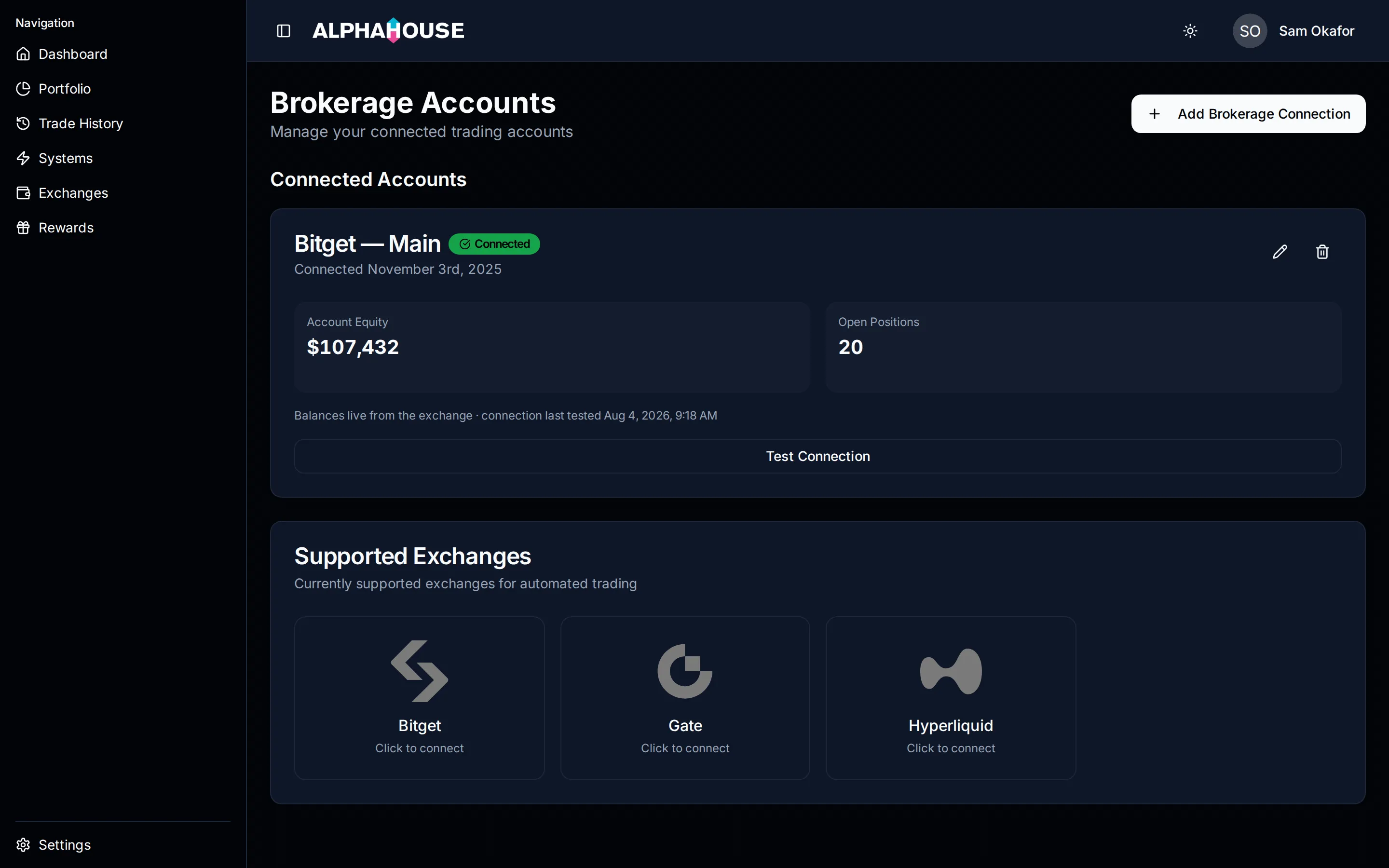
One connected account, with the supported-exchange grid underneath.
Adding a connection
Section titled “Adding a connection”Add Brokerage Connection opens the dialog where you pick an exchange and paste in the API credentials you created on its own site. Any tile in the Supported Exchanges grid opens the same dialog.
If you have a trading system with no exchange attached, an Action Required alert at the top offers a shortcut.
The connection card
Section titled “The connection card”One card per account, headed by the connection name, a status badge, a DEMO badge if it is a sandbox account, and the creation date.
- Connected. The account is live and being read.
- Pending. The connection has not been confirmed yet.
- Failed. The last attempt did not work, and the error is shown on the card.
The two figures
Section titled “The two figures”Account Equity and Open Positions are read live and refresh roughly every ten seconds. If the live read is unavailable, the card falls back to the last value recorded by a Test Connection run and says so, with the date. If neither is available, the tile says unavailable: it never shows a zero it is not sure about, because a flat account and an unreadable one are different facts.
A connection that is not Connected is not polled, and its tiles say so.
Test Connection
Section titled “Test Connection”Test Connection asks the exchange for your account right now. Success shows your equity in a toast; failure shows the reason the exchange gave.
On Bitget it also checks your futures position mode and tells you if it is set in a way the system cannot trade, so you can correct it before the next run.
Run it after changing API keys or permissions, or whenever a card shows Failed.
Editing a connection
Section titled “Editing a connection”The pencil icon changes the display name and the sandbox setting. Name them if you run more than one account on the same exchange, so the Systems exchange chip tells you which is which.
Deleting a connection
Section titled “Deleting a connection”The bin icon deletes the connection after a confirmation. This cannot be undone.
Any system linked to that connection loses its exchange and shows a warning until you point it at another one.
When something looks wrong
Section titled “When something looks wrong”- Status is Failed. Read the error on the card. Usual causes: an expired key, an IP allowlist that excludes us, or missing trading permissions.
- Equity shows as unavailable. The live read failed. Run Test Connection.
- The equity here does not match the exchange app. This page reads the futures account the system trades. Balances elsewhere on the same exchange are not included.