

Settings & billing
Settings has four tabs: Profile, Billing, Security and Legal.
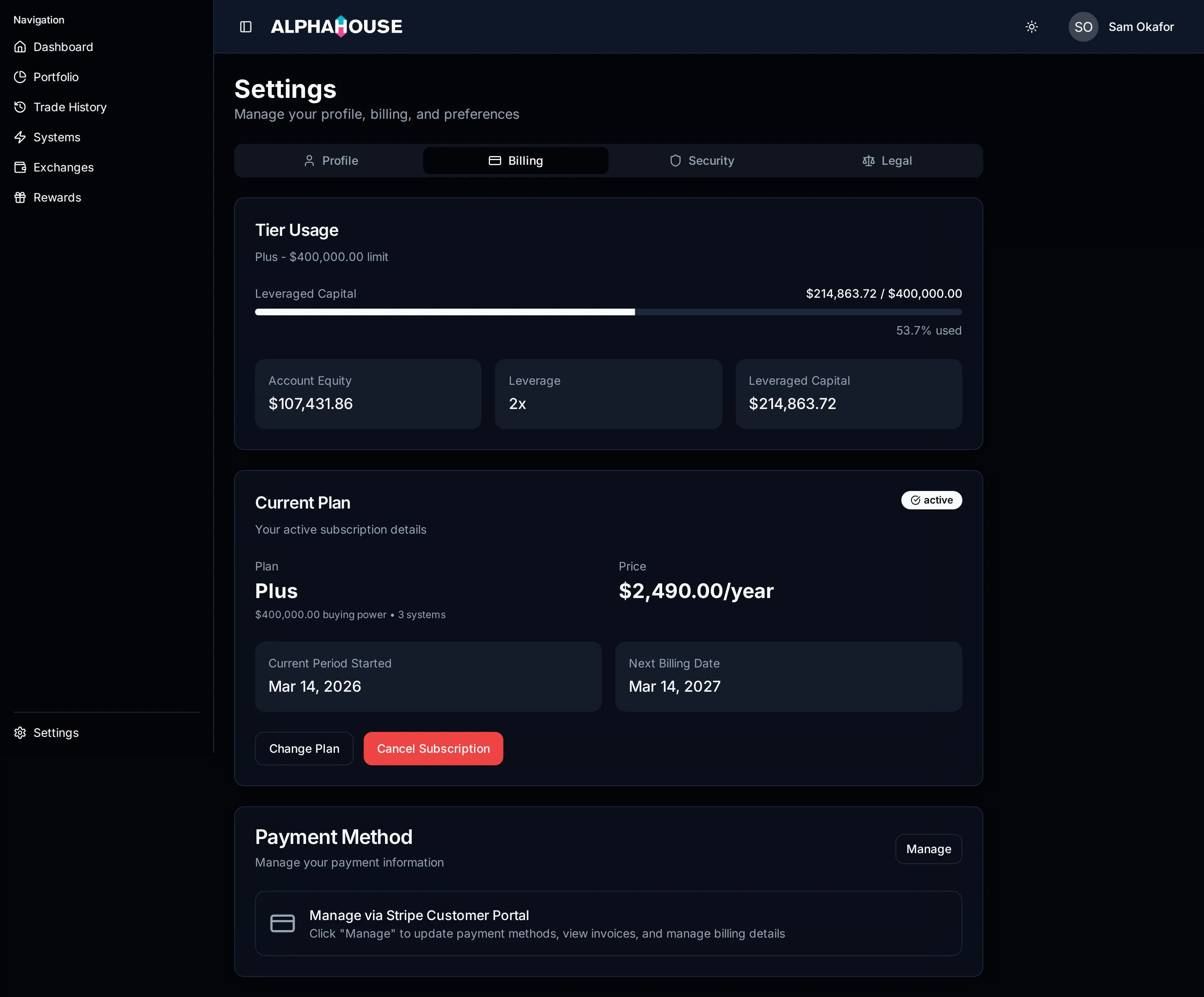
Settings on the Billing tab, reached directly via /settings?tab=billing.
Each tab is deep-linkable with ?tab=, so /settings?tab=billing opens
straight on Billing. An unrecognised value falls back to Profile.
Profile
Section titled “Profile”Your personal information and preferences. Saving confirms with a toast.
Security
Section titled “Security”Change your password here. Nothing else lives on this tab.
The documents you have accepted: Terms of Service, Privacy & Security Policy, and Risk Statement & Disclaimers, each with the version, the date, and a link to the current one.
If they change materially, an Action Required notice asks you to review and re-acknowledge.
Billing
Section titled “Billing”Tier Usage
Section titled “Tier Usage”How much of your plan’s leveraged-capital allowance is in use: a progress bar, your equity, your leverage setting, and the leveraged capital that results. Above, a Plus plan sits a little over half its cap.
Three warnings can appear:
- Over your plan limit. Your leveraged capital is above your plan’s ceiling. Your leverage setting is not changed; if it stays over, a move to the plan that covers it is scheduled, with notice.
- Approaching your plan limit. You are past 80% of the limit. Nothing is scheduled yet.
- Plan change scheduled. A move is booked. The panel names the plan and the date, and stays visible until that date even if your usage comes back down.
Current Plan
Section titled “Current Plan”Your plan name, what it includes (buying power and how many systems), price and interval, the current period start, and the next billing date. A status badge shows active, grace period, past due, unpaid or cancelled.
Notices that can appear here:
- Payment Issue. A payment failed. You get a date to update your card by, before service is interrupted.
- Plan Change Scheduled. A change takes effect on a stated date. You keep your current plan until then.
- Cancellation Scheduled. Your subscription ends on the date shown.
The buttons
Section titled “The buttons”- Change Plan opens the Stripe customer portal, where upgrades, downgrades and interval changes happen.
- Cancel Subscription confirms, then schedules cancellation. You stay active until the end of the current period.
- Reactivate Subscription replaces Change Plan once a cancellation is scheduled, and undoes it.
Payment Method
Section titled “Payment Method”Managed through the Stripe customer portal. Manage takes you there to update cards, view invoices and change billing details, then returns.
If you have no subscription yet
Section titled “If you have no subscription yet”If you have already picked a trading system, plan selection appears inline. If not, you are prompted to choose one first, since plans are chosen against what you intend to run.
Back out of checkout and you land here with a Checkout cancelled notice confirming you were not charged.
A note on removing systems and billing
Section titled “A note on removing systems and billing”Removing a system on Systems does not cancel your subscription. They are separate actions, and the removal dialog says so. Cancel here if you want the billing to stop.