

Systems
Systems is where you decide what trades, where, and how hard. It is the only page with controls that change your account.
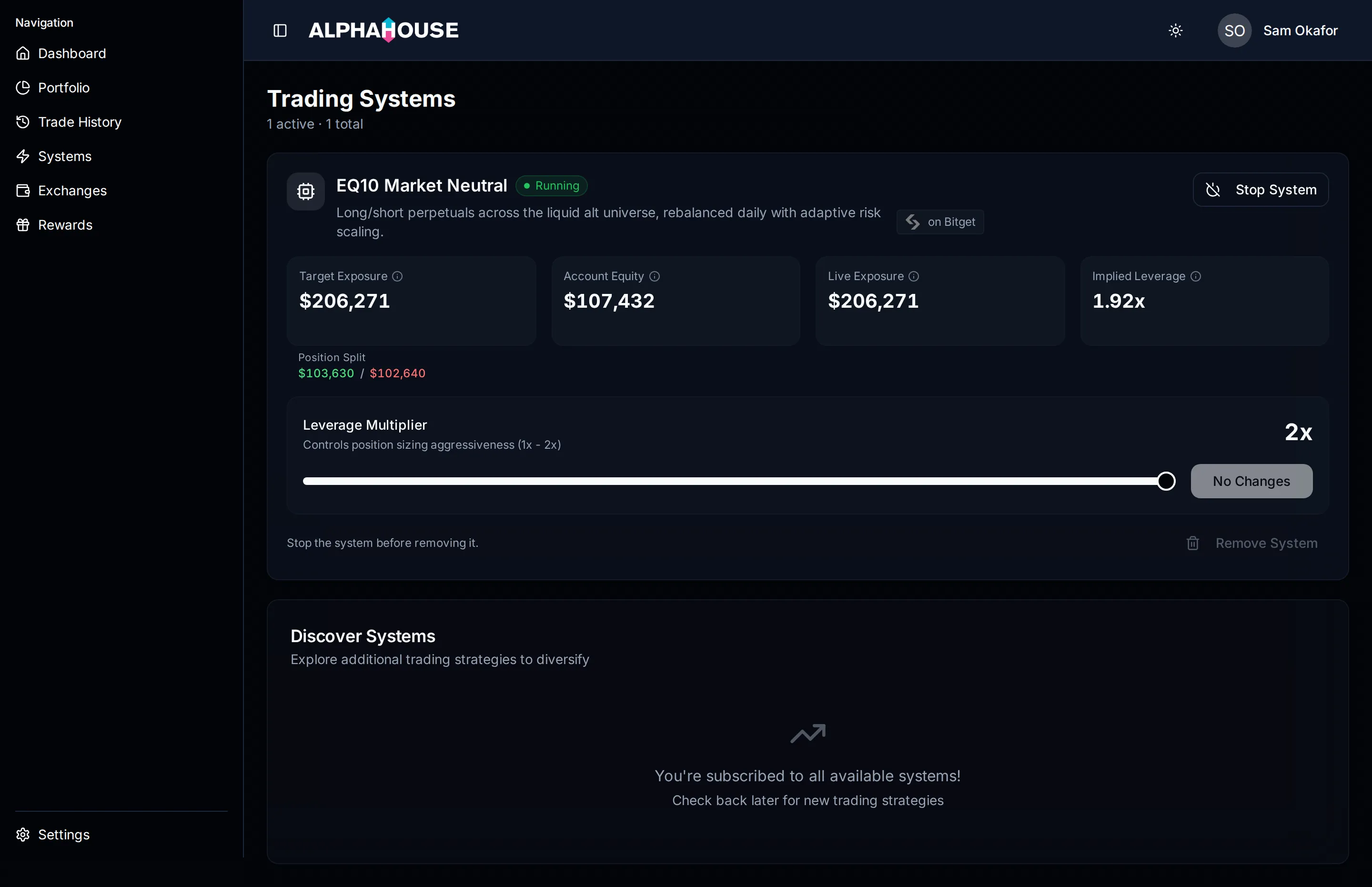
Systems with one subscribed, running system and the discover section below.
Adding a system
Section titled “Adding a system”Every system — the ones you run and the ones you could add — sits in one grid. A system you have not added yet is shown with a dashed border and an Add System button.
With one connected exchange, the system is linked to it automatically. With more than one, you are asked which account it should trade.
Adding does not start trading. The system appears as Stopped. Nothing reaches your exchange until you press Start, so you can check the account it landed on and set your leverage first.
Adding also does not cost anything and does not use a plan slot. Your plan is checked when you press Start — if you have no plan, or no free slot, that is when you are told.
The system card
Section titled “The system card”Each system gets a compact card headed by its name and a Running or Stopped badge, showing the exchange it trades, its live exposure and its leverage.
The card carries Start or Stop directly. Manage opens a panel with everything else — leverage, changing exchange, position controls and removal.
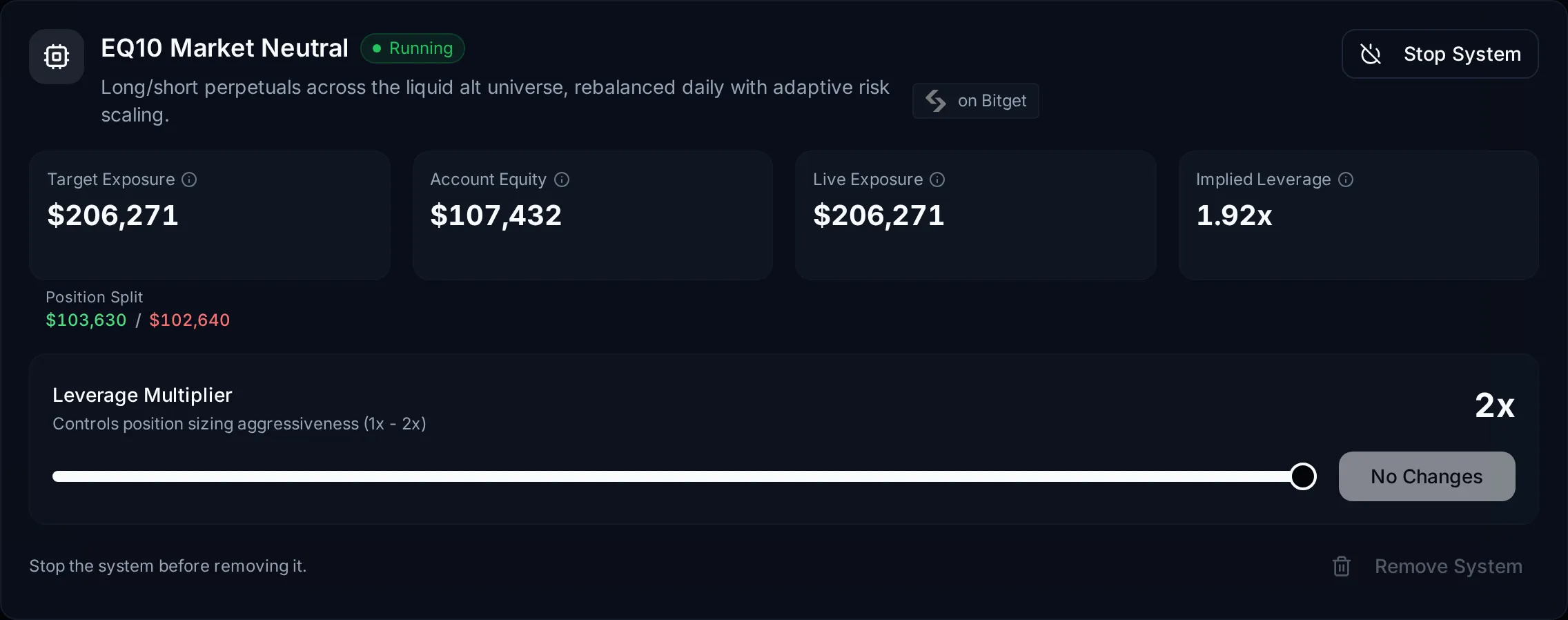
One system card. Remove System is greyed out because the system is running, and the reason is stated beside it.
The four metrics
Section titled “The four metrics”- Target Exposure is what the system is aiming for, published by the daily portfolio run. It is the server’s own figure, never recalculated in your browser, and its age is in the tooltip. See target exposure.
- Position Split sits under it: the long and short halves of that target. Roughly equal halves are the expected shape.
- Account Equity is live equity on the one account this system trades, not summed across every exchange you have.
- Live Exposure is the gross notional of this system’s open positions.
- Implied Leverage is gross notional divided by equity, against your leverage target. This is sizing leverage, not exchange margin leverage. See leverage.
Where a figure cannot be read, the tile says so rather than showing a zero.
The Transitioning banner
Section titled “The Transitioning banner”An amber Transitioning banner means live and target exposure are more than a few dollars apart, and the book is moving toward target over the rolling window as old positions expire. Normal after you start a system, change leverage, or after a regime shift.
It derives from the published target, so moving the slider does not make it appear.
Starting and stopping
Section titled “Starting and stopping”Start asks you to confirm first. The confirmation names the three things that decide what happens to your money:
- which system you are starting
- which exchange account it will trade — pick it here, and only accounts with no other system on them are listed
- what leverage it will run at
Trades then begin at the next scheduled run, not immediately.
Stop halts new positions but leaves the book you hold, so you are asked what should happen to it:
- Let Positions Roll Off (~30 days). They expire naturally. Confirm by
typing
ROLL OFF. - Liquidate Immediately. All open positions for this system close at market.
Confirm by typing
LIQUIDATE.
If the account is already flat, you just confirm the stop.
The leverage slider
Section titled “The leverage slider”The slider sets how aggressively the system sizes positions, in steps of 0.25. The allowed range is set per system and shown under the label.
While you drag, the card shows a projected target exposure beside the published figure: that number scaled by the leverage change, a preview rather than a new instruction.
Nothing is saved until you press Save Changes. Until then the value shows
unsaved; the button reads No Changes when the slider sits where it was
saved. The slider is disabled while the system is paused.
Changing leverage does not resize the book instantly. The next daily run moves toward the new target.
If a save fails on the allowed range, a plain message gives the permitted range, currently 0.5x to 2x in steps of 0.25. Other failures show the underlying reason.
See leverage for what the multiplier does.
Changing the exchange
Section titled “Changing the exchange”Change on the exchange chip moves the system to another connected account. You need at least one alternative, and a system cannot move to the exchange it is already on.
Removing a system
Section titled “Removing a system”Remove System takes the system off your list. It is gated:
- While the system is running, stop it first.
- While the linked account holds open positions, removal is blocked. A Close Positions button saves waiting for the book to roll off.
- While positions are being checked, removal waits. If they cannot be verified, it stays blocked and you are asked to check the connection.
The confirmation makes three things explicit:
- Your execution and trade history is kept. Nothing is deleted.
- You can add the system again later, on any free exchange account.
- Removing a system does not cancel your billing. Your plan keeps renewing until you cancel it in Settings and billing.
Plan limits
Section titled “Plan limits”The number of systems you can run at once comes from your plan. Starting one beyond it shows a System Limit Reached message and sends you to billing. See plan limits.