

Managing connections
This all lives on the Exchanges page, described in detail in Exchanges page.
Each trading system needs its own exchange account. If you want to run a second system, see Running more than one system.
The connection card
Section titled “The connection card”Each connected exchange gets a card showing:
- The connection name and exchange
- A status badge
- Account Equity, read live and refreshed roughly every ten seconds
- Open Positions, also live
- When it was last tested
- Buttons to edit, delete and test
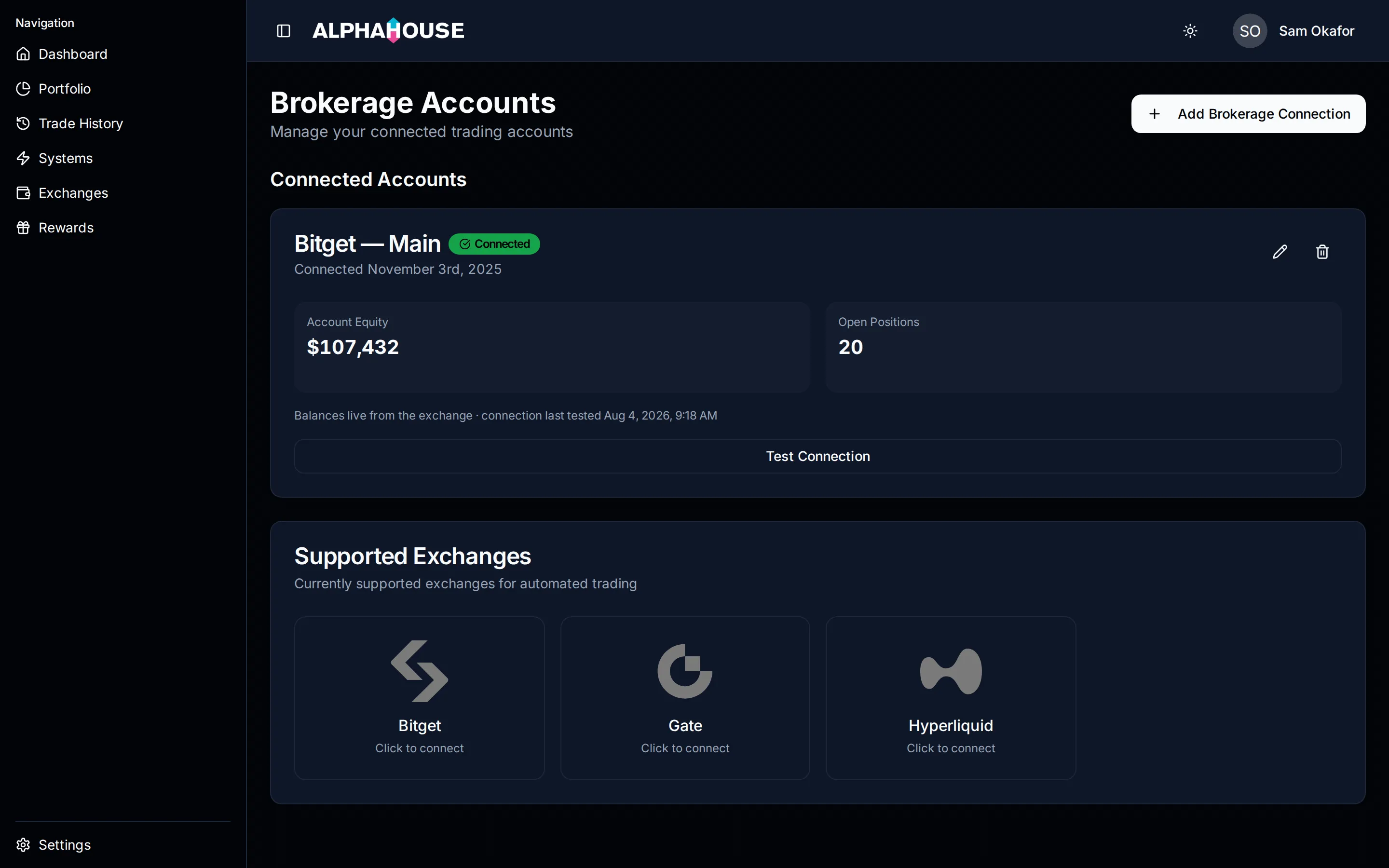
A healthy connection card. The line under the tiles says where the figures came from and when it was last tested.
If a live reading is unavailable the card says so rather than showing a zero: it falls back to the last successful test’s figure, labelled with when it was recorded. A blank means no value is available, not that it is zero.
Connection statuses
Section titled “Connection statuses”| Status | What it means |
|---|---|
| Connected | The last test succeeded. AlphaHouse can read your balance and trade. |
| Pending | Not successfully tested yet. Also the status a connection returns to after you change its credentials. |
| Failed | The last test failed, and the card shows the error the exchange returned. Nothing is traded on this connection until it tests successfully. |
A connection that is not Connected is not polled for live balances, which is why its equity tile falls back to an older value.
Testing a connection
Section titled “Testing a connection”Click Test Connection. AlphaHouse asks the exchange for your balance and open positions, then updates the status and recorded equity.
Test when:
- You have just changed API key permissions or IP restrictions
- The status reads Failed and you think you have fixed it
- You want to confirm an account is reachable before switching a system on
Adding a second connection
Section titled “Adding a second connection”You can hold as many connections as you like, including more than one on the same exchange. Click Add Brokerage Connection, pick the exchange, fill in the credentials and test. Give the second a display name so the two are distinguishable on the Exchanges page and in the system settings dropdown.
Each trading system runs against one connection, so adding a second does not split a system across two accounts. See Systems.
Editing a connection
Section titled “Editing a connection”The Edit button (pencil icon) opens a dialog where you can change the display name, demo / paper trading mode if you have it, and the credentials.
Credential fields are always blank when the dialog opens, because stored secrets cannot be decrypted for display. A blank field means “keep the current value”, and only the fields you type into are replaced.
Rotating a key is a normal edit: create the new key, paste it in, save, then revoke the old one at the exchange.
Deleting a connection
Section titled “Deleting a connection”The Delete button (the bin icon) asks for confirmation, then removes the connection. This cannot be undone.
-
Make sure no trading system points at the connection, and consider closing positions on the exchange first. Deleting removes AlphaHouse’s ability to manage those positions; it does not close them.
-
Delete the connection in AlphaHouse.
-
Revoke the API key at the exchange. This is the step people skip. Deleting stops AlphaHouse using the key; revoking guarantees nothing can.
To stop trading for a while, pause or archive the system rather than deleting the connection.
Demo and sandbox mode
Section titled “Demo and sandbox mode”Some accounts see a Demo / Paper Trading toggle when adding or editing a connection. It is gated behind a demo-access flag; if you do not see it, nothing here applies to you.
When enabled, the connection points at the exchange’s simulated environment and uses virtual funds. The credentials must be demo API keys from that environment; live keys will not work against a demo endpoint or vice versa. Such connections carry a blue DEMO badge.
How your credentials are stored
Section titled “How your credentials are stored”Credentials are encrypted before they reach a database table. The connection record stores only a reference to a secret in Supabase Vault; the key, secret, passphrase or private key is never stored in plain text and never displayed back to you, including in the edit dialog. They are decrypted only server-side, when an operation runs against the exchange, and only for your own connections.